Most skill cooldowns are quite simple to configure, and I don't want to manually create a separate GE for every simple case. Therefore, I wrote an asset action to automate the creation process.
The code is about 200 lines long and can serve as a template for other actions. Throughout this process, I learned a lot, and I will provide the complete code for this tools, hoping it will help you as well.
Idea
WARNING
Previous experience has shown that it's best not to dynamically create GE at runtime, so I opted to create them directly using Asset Action.
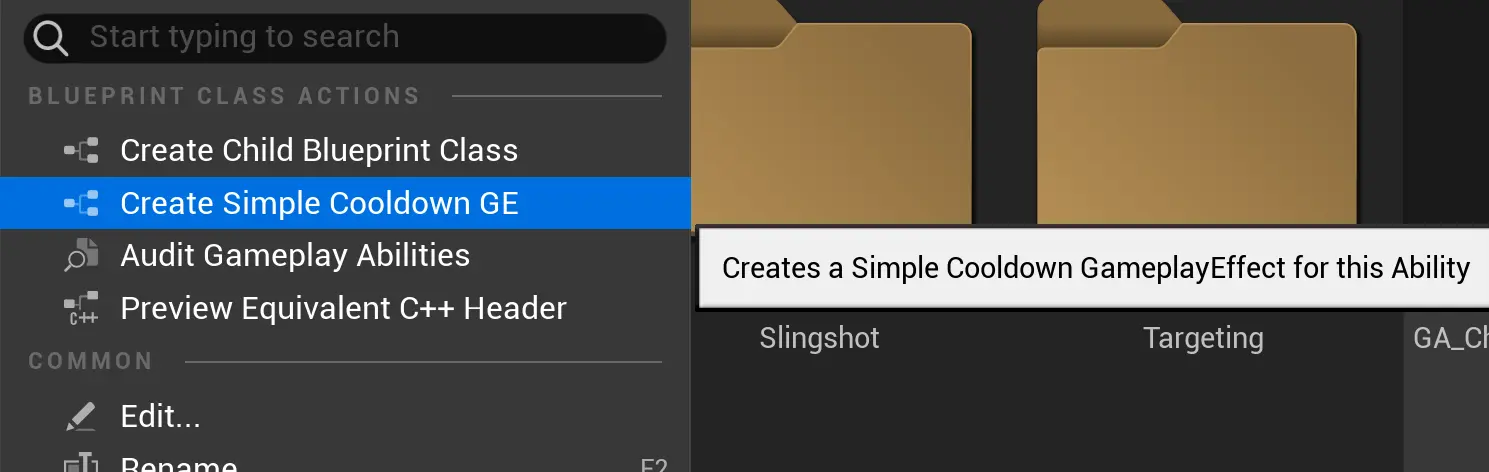
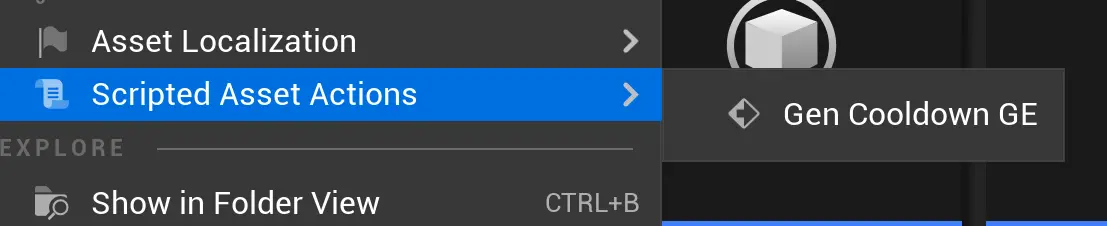
In the Gameplay Ability, define a cooldown time field, then right-click to find a custom action to automatically create a GE. In addition to creating the GE itself, a corresponding cooldown tag will also be created.
Editor Module
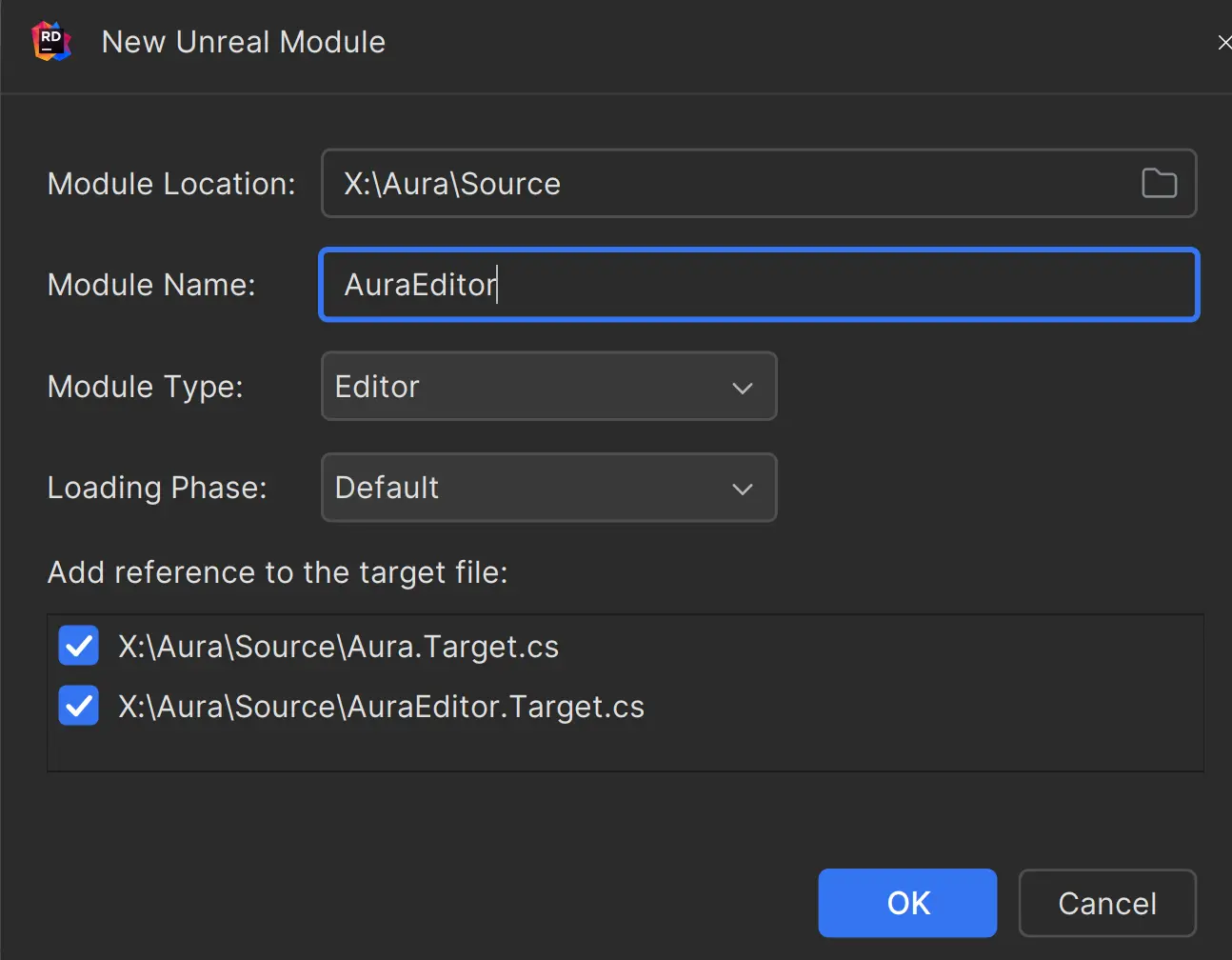
Since asset operations belong to the Editor Module, we need to create the Editor Module first.
Using Rider can greatly assist us in creating this.
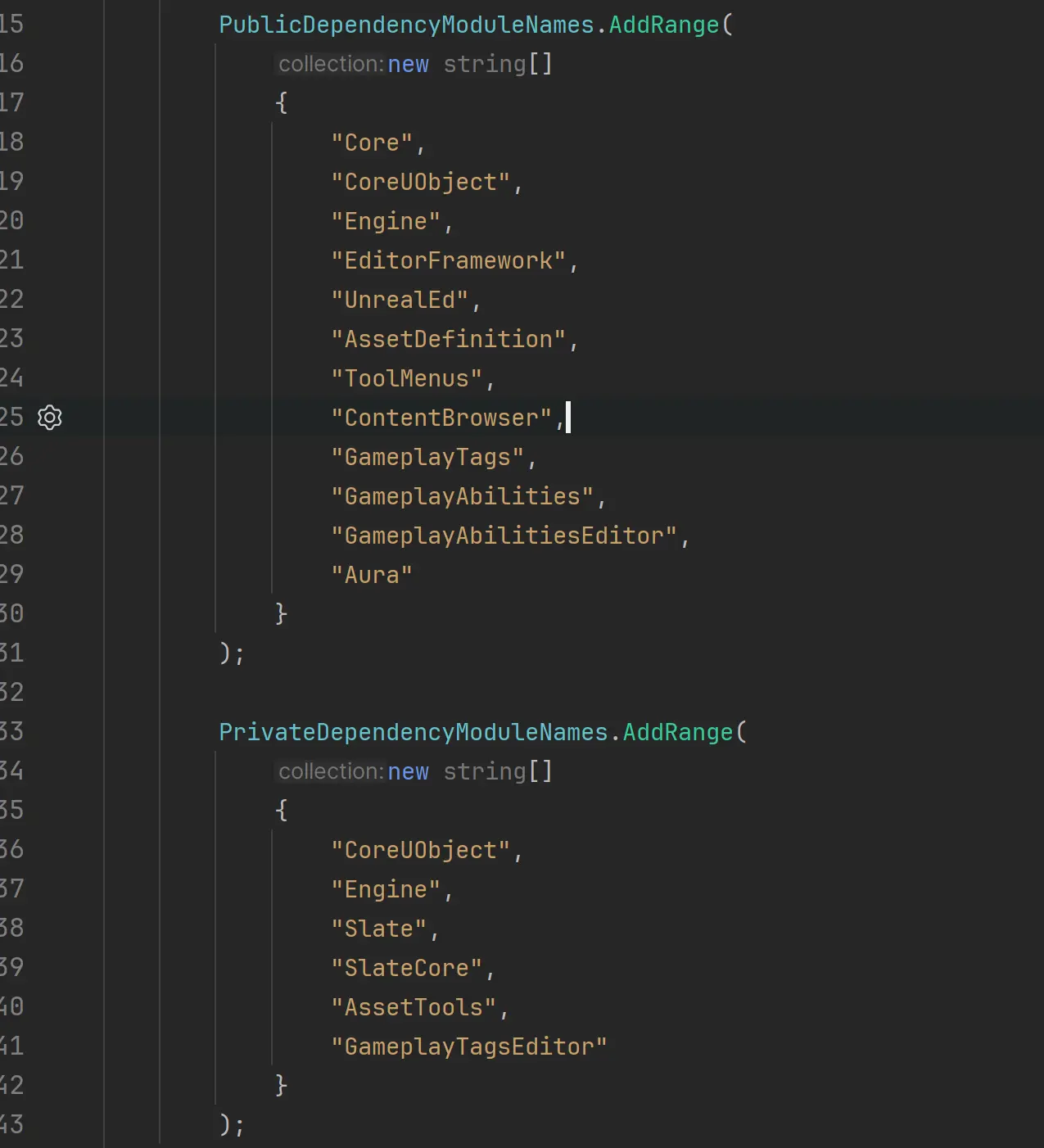
Add dependencies.
Custom AssetDefinition
Originally, I used UAssetDefinitionDefault to implement the asset action, but comments indicated that this class is deprecated, and we need to use AssetDefinition.
At first, I directly used UGameplayAbility(Type) to create the AssetDefinition for it, but I found that UGameplayAbility(Assets Type) is actually a blueprint asset type, and blueprint assets are already implemented internally by the engine. Creating my own would override the internal implementation, which complicates things. Fortunately, I saw internal examples indicating that an AssetDefinition does not necessarily need to be implemented. You can refer to the implementation of [GameplayAbilityAudit].
Custom MenuExtension_xxx
namespace MenuExtension_YourActions
In this namespace, you only need to implement a method called Delayed Registration.
static FDelayedAutoRegisterHelper DelayedAutoRegister(EDelayedRegisterRunPhase::EndOfEngineInit, []
Implementation Details
There are two main details:
Creating the GE blueprint asset.
Creating a GameplayTag and saving it to an .ini file.
Creating GE
FAssetToolsModule& AssetToolsModule = FModuleManager::GetModuleChecked<FAssetToolsModule>("AssetTools");First, obtain the AssetToolsModule.
UBlueprintFactory* BlueprintFactory = NewObject<UBlueprintFactory>();
BlueprintFactory->ParentClass = UGameplayEffect::StaticClass();
// do not use GE directly
// UGameplayEffect* NewGE = Cast<UGameplayEffect>(AssetToolsModule.Get().CreateAsset(CooldownGEName, NewGEPath, UGameplayEffect::StaticClass(), nullptr));
UObject* CreatedAsset = AssetToolsModule.Get().CreateAsset(CooldownGEName, NewGEPath, UBlueprint::StaticClass(), BlueprintFactory);Create the GE blueprint asset; here, you need to use BlueprintFactory instead of directly using UGameplayEffect. Otherwise, you'll only get the default type of UGameplayEffect instead of its blueprint asset.
// GE Blueprint Asset Class
UClass* GeneratedClass = GE_Blueprint->GeneratedClass;
// use the CDO, not New Object
UGameplayEffect* NewGE = Cast<UGameplayEffect>(GeneratedClass->GetDefaultObject());Next, obtain the GeneratedClass from the blueprint and its CDO to assign values to it using code.
Creating GameplayTag
You need to use IGameplayTagsEditorModule, so you must add dependencies. The usage is quite simple:
- Check if the project allows creating GameplayTags via ini files.cpp
const UGameplayTagsManager& Manager = UGameplayTagsManager::Get(); // Only support adding tags via ini file if (Manager.ShouldImportTagsFromINI() == false) { return; } - Create a GameplayTag, with the default filename temporarily set to
DefaultGameplayTags.ini.cppconst TSharedPtr<FGameplayTagNode> TagNode = Manager.FindTagNode(CooldownTagName); if (!TagNode.IsValid()) { const FString TagComment = FString::Format(TEXT("Auto Gen Cooldown Tag for {0}"), {TagName}); IGameplayTagsEditorModule::Get().AddNewGameplayTagToINI(TagName, TagComment, DefaultTagINI); }
Complete Code
Other Attempts
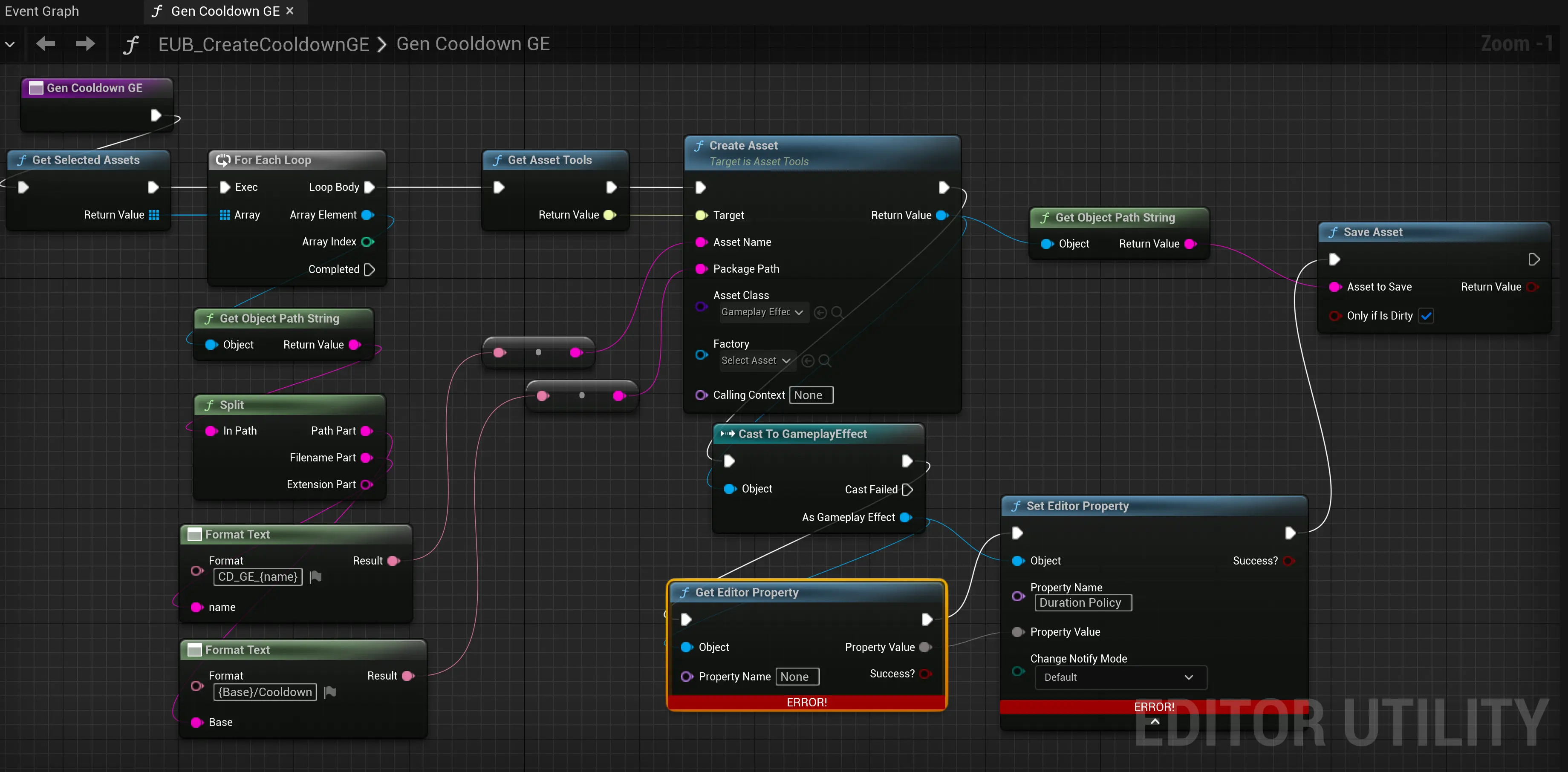
Blueprint Editor Script
I can create a GE asset file, but I have not yet found a way to assign values. I don’t know how to use Set Editor Property; if anyone knows, please leave a comment.